1) Browse by category
Open Makes, choose a manufacturer, then select a model. You’ll see available years and counts to help locate the most common variants.
Research auction vehicles by VIN, browse makes and models, and review available photos and listing fields. Fast navigation: Make → Model → Year → VIN.
Tip: If you already have a VIN, start with VIN Search.
Wheelwise is an auction indexing and browsing tool. It helps you quickly move from a broad category (make → model → year) to a specific vehicle record (VIN page) where you can review available photos, auction fields, and sale entries when present in the source data.
Use Wheelwise to compare vehicles for export, rebuilding projects, or purchase research. Data availability depends on the source: some listings provide detailed specs, while others only include basic information. Missing values usually mean “not provided by the source,” not “zero.”
Always verify VIN, title status, and condition using official auction documents and inspection. Wheelwise speeds up research and organization — it does not replace due diligence.
Quick ways to explore the catalog.
The fastest path is VIN → details. If you do not have a VIN, start by browsing makes, open a model, then choose a year to see VIN pages. This structure improves discoverability and keeps navigation consistent across the entire catalog.
Quick entry points. Choose a make to open the model index, then browse by year and VIN.
These links lead to make indexes. Each make page groups vehicles by model name and shows counts, which helps you identify common variants and quickly drill down to the year level.
If you don’t see the make you need here, open the full directory: Browse Makes.
A simple path from browsing to VIN research.
Open Makes, choose a manufacturer, then select a model. You’ll see available years and counts to help locate the most common variants.
Choosing a year shows vehicles indexed for that make/model/year combination. This supports comparisons across time and helps spot repeated sale entries.
VIN pages often contain the most useful view: photos, auction details, and specs when available. Use the VIN page as your research hub for one vehicle.
Depending on the source record, a listing may include auction name/date, title status, damage categories, odometer text, powertrain fields, drivetrain, cylinders, and photos. Some vehicles do not include a final bid. Treat missing fields as “not provided” and verify everything with official documentation.
A small sample of recently indexed records.
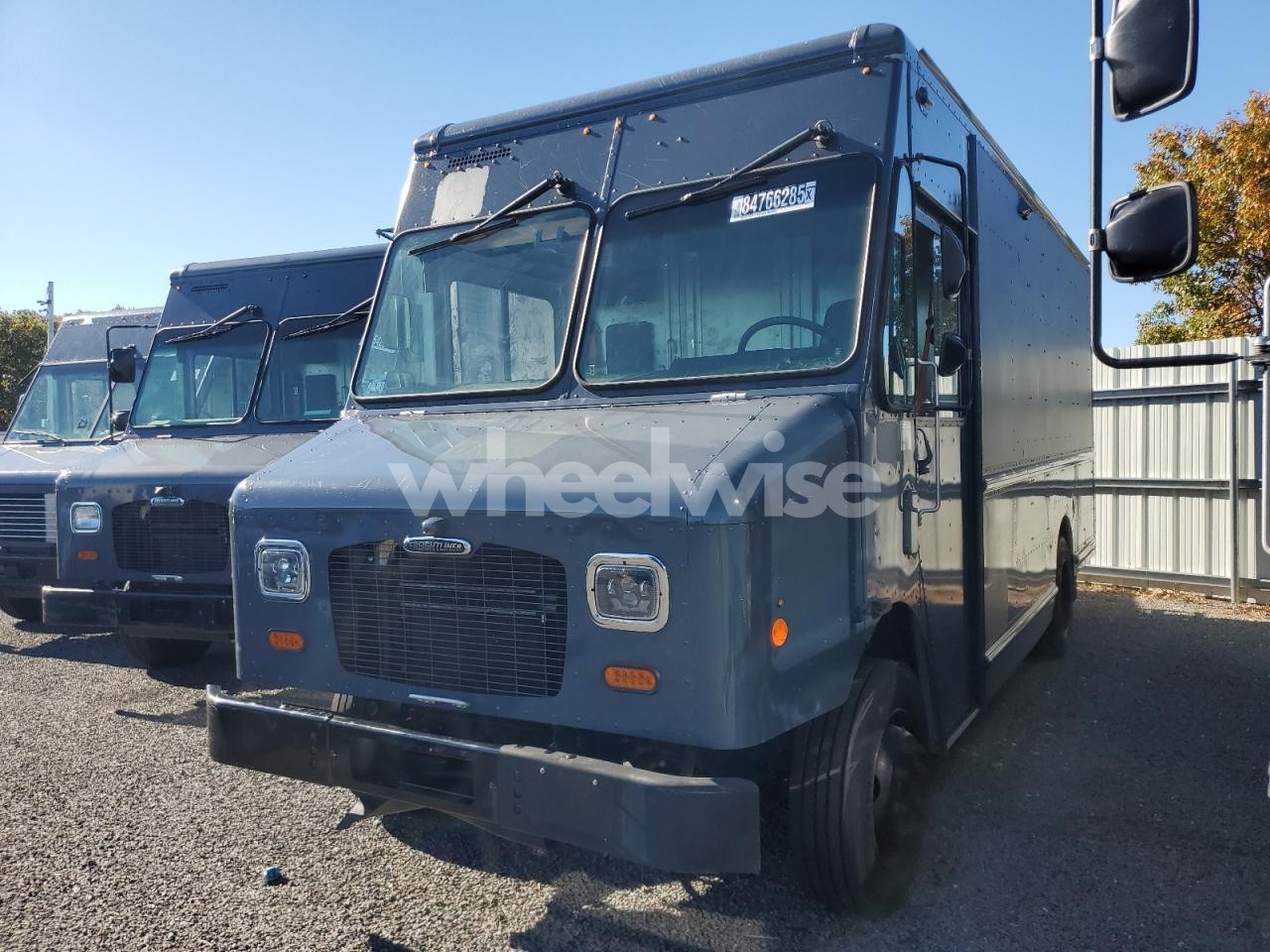
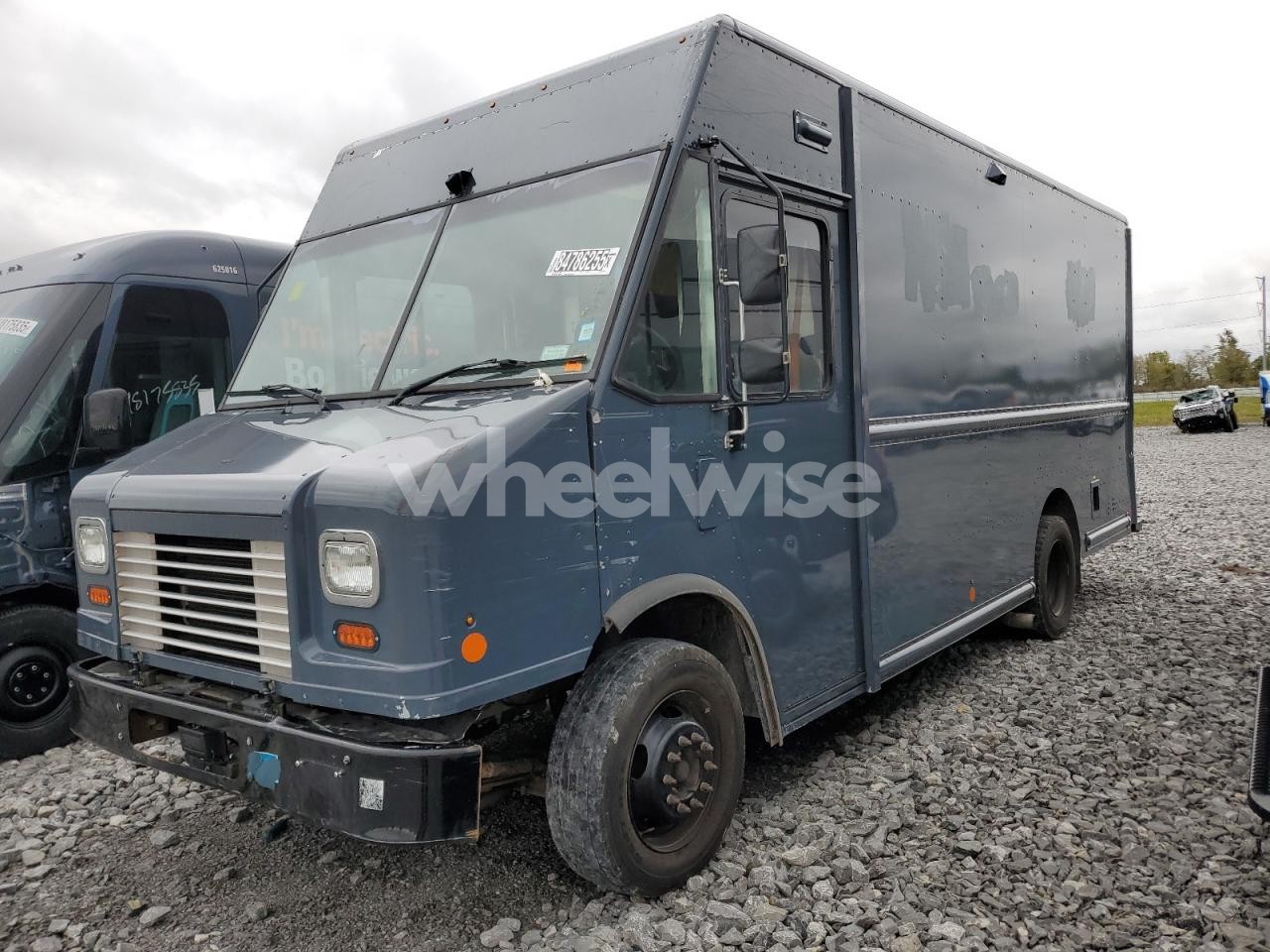
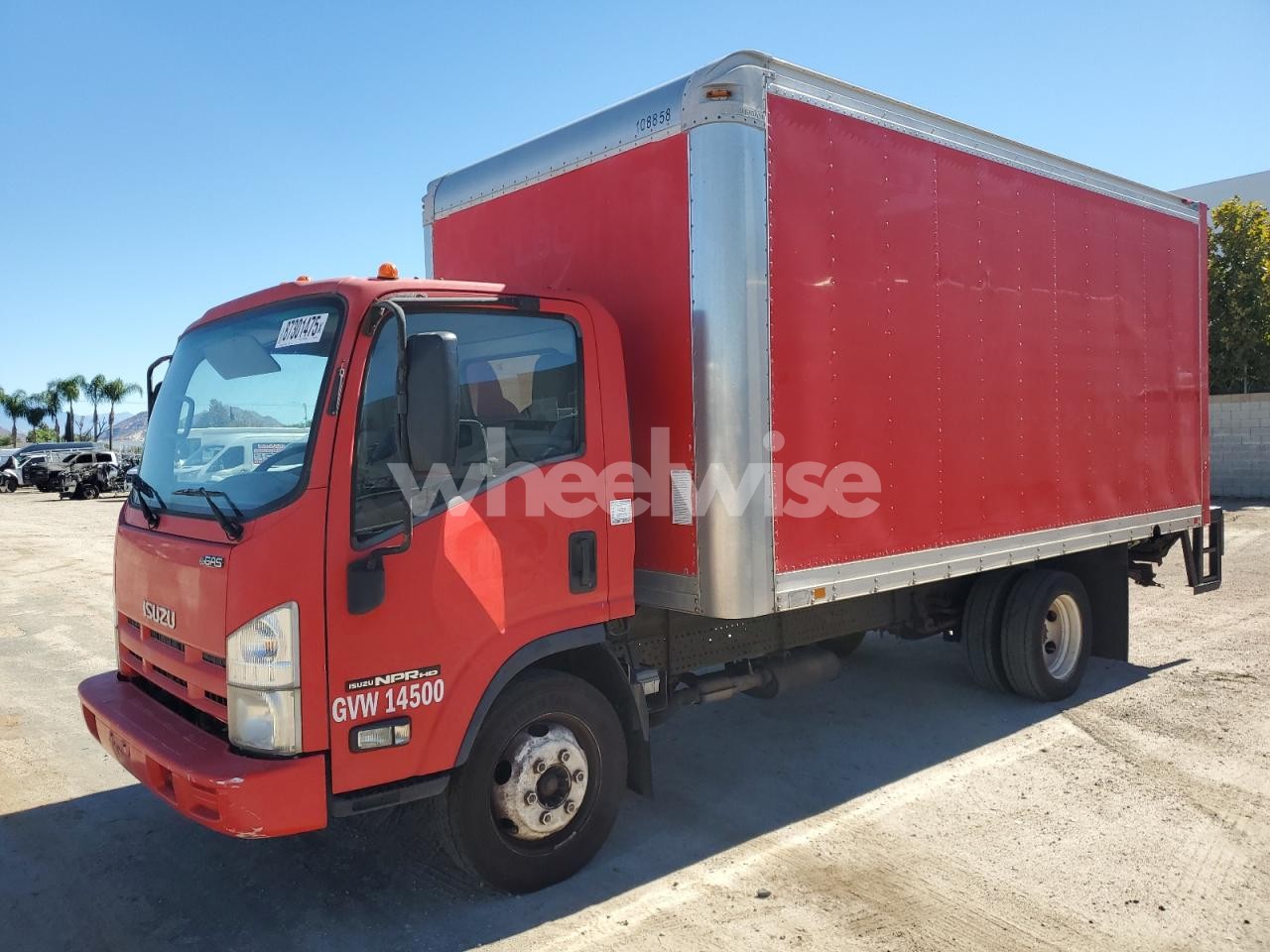
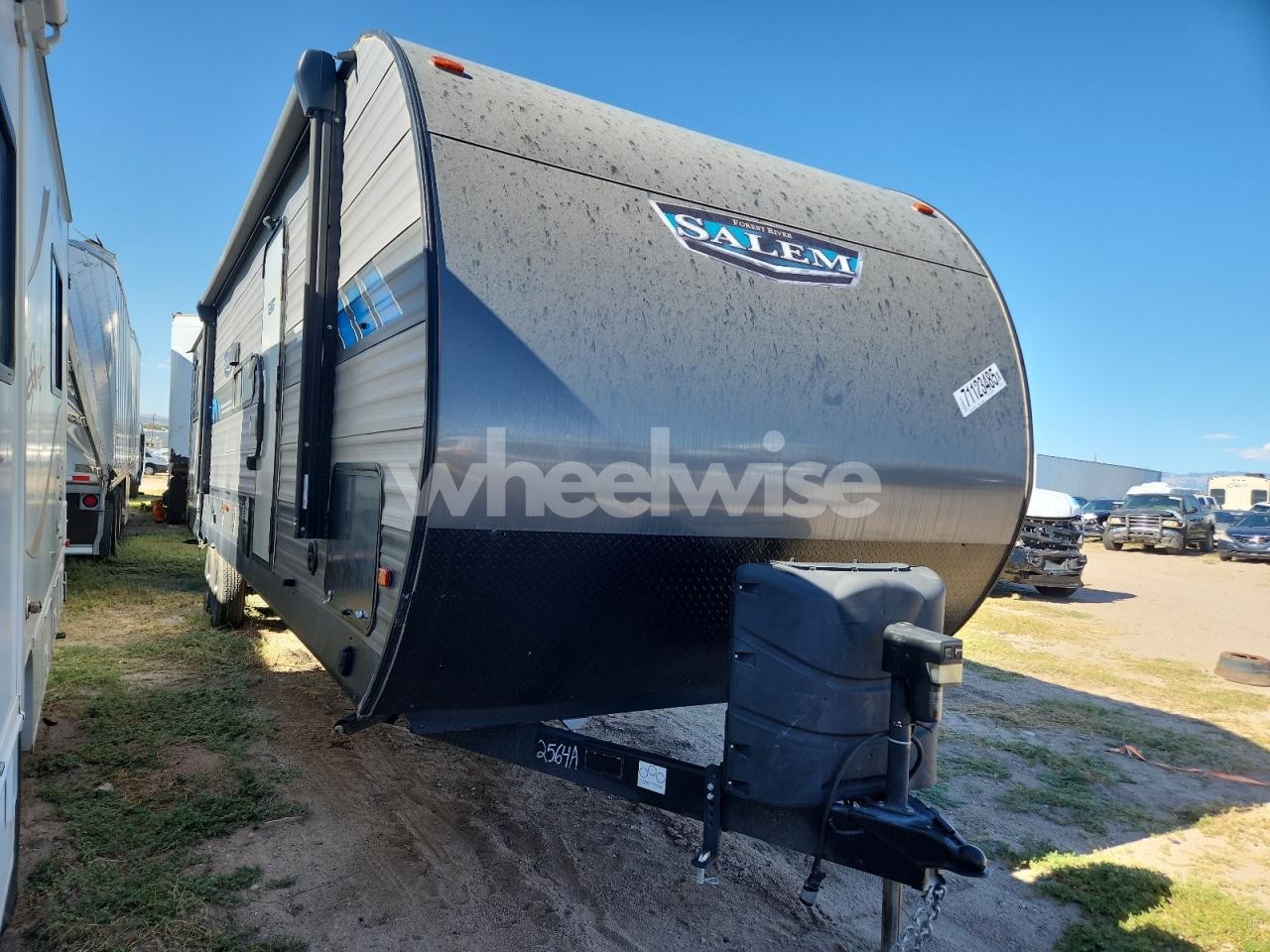
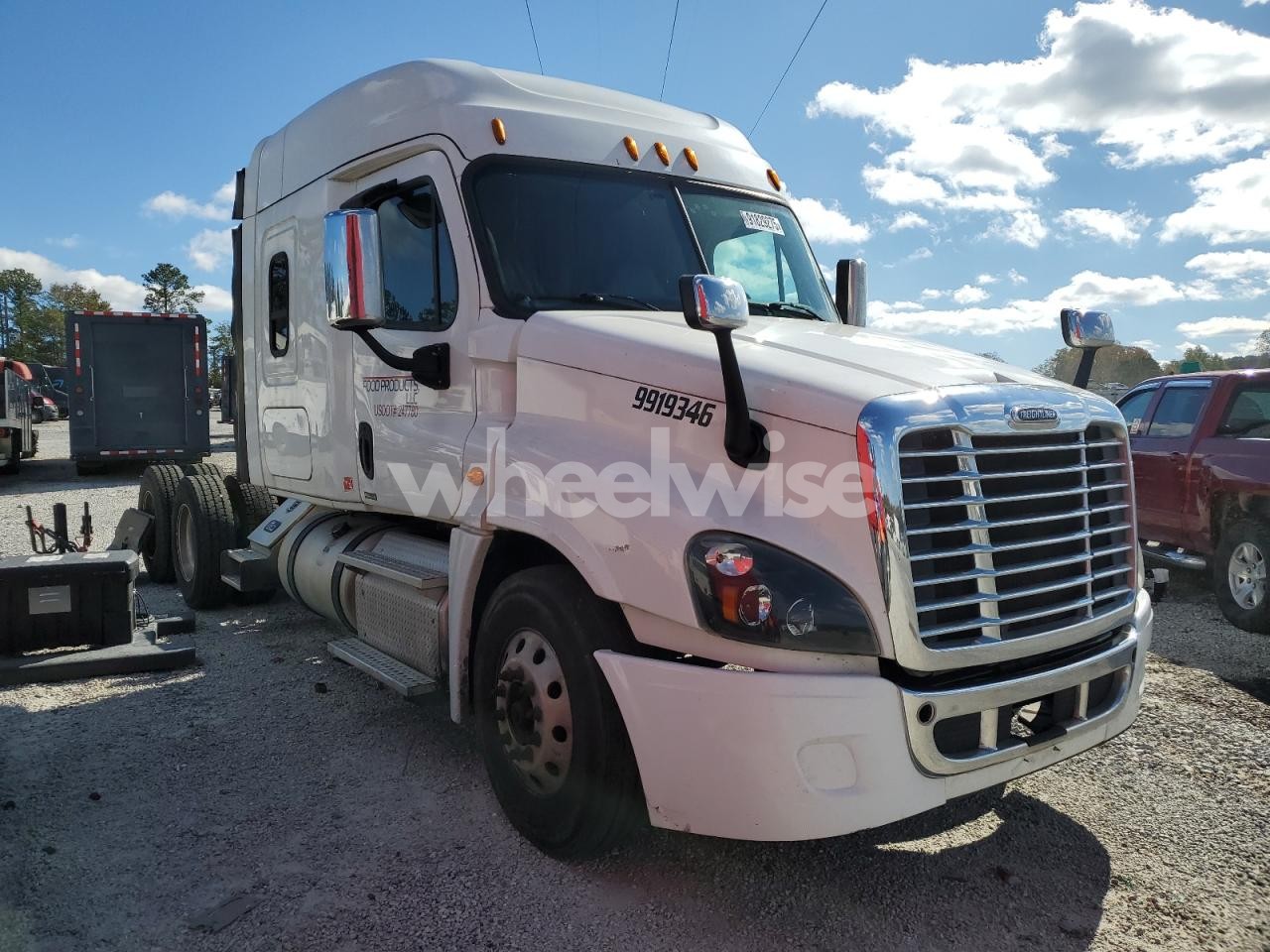
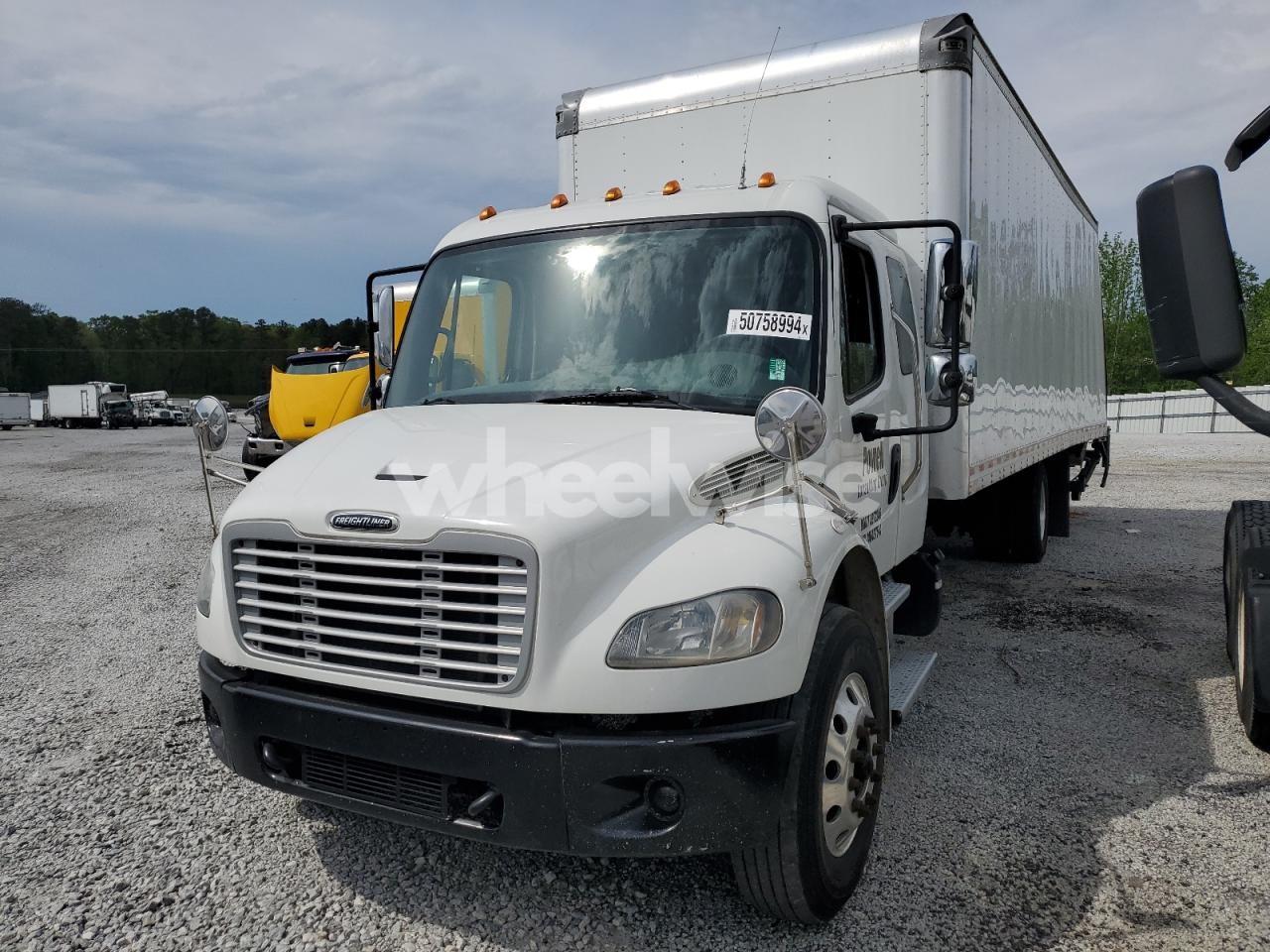
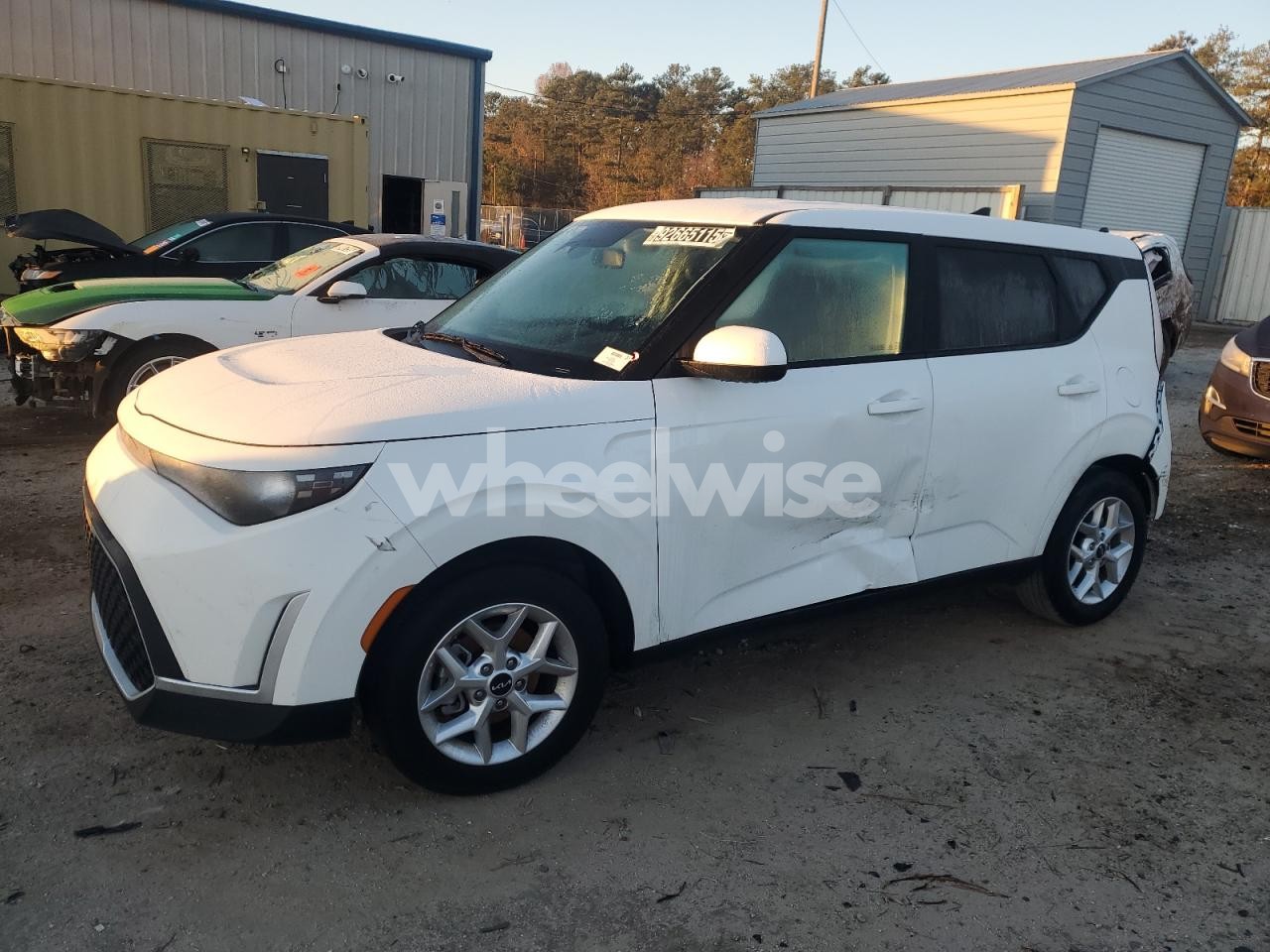
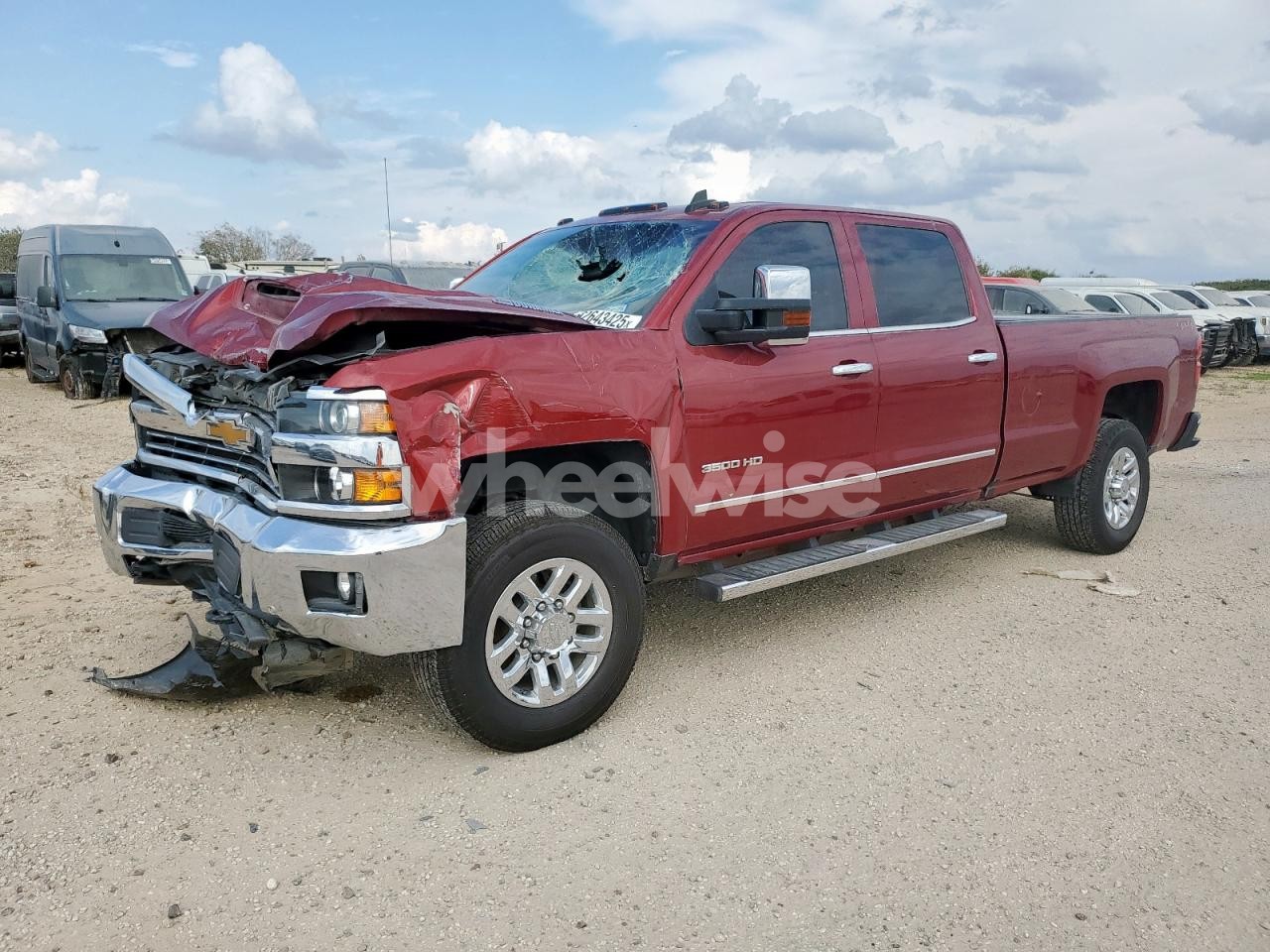
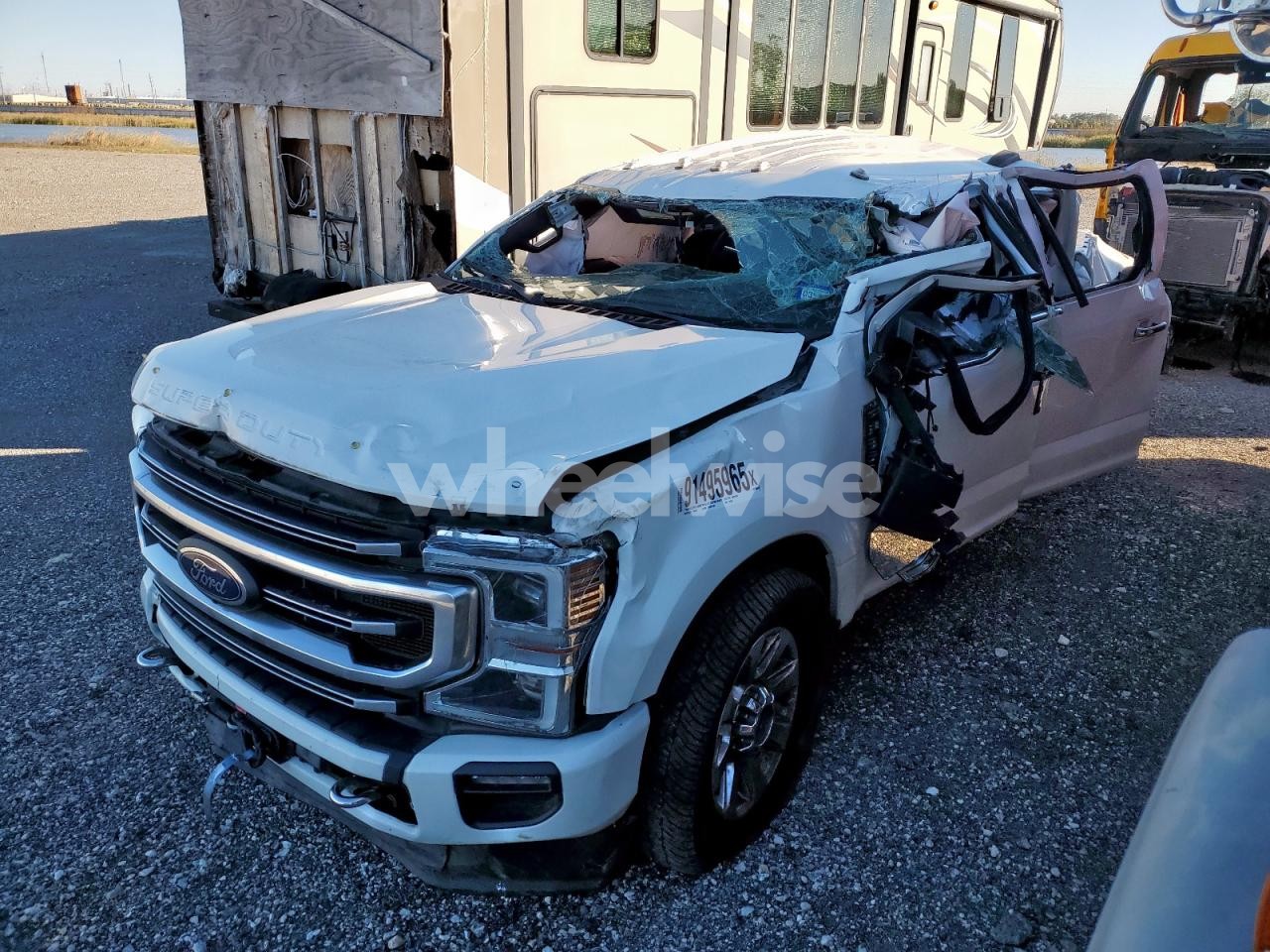
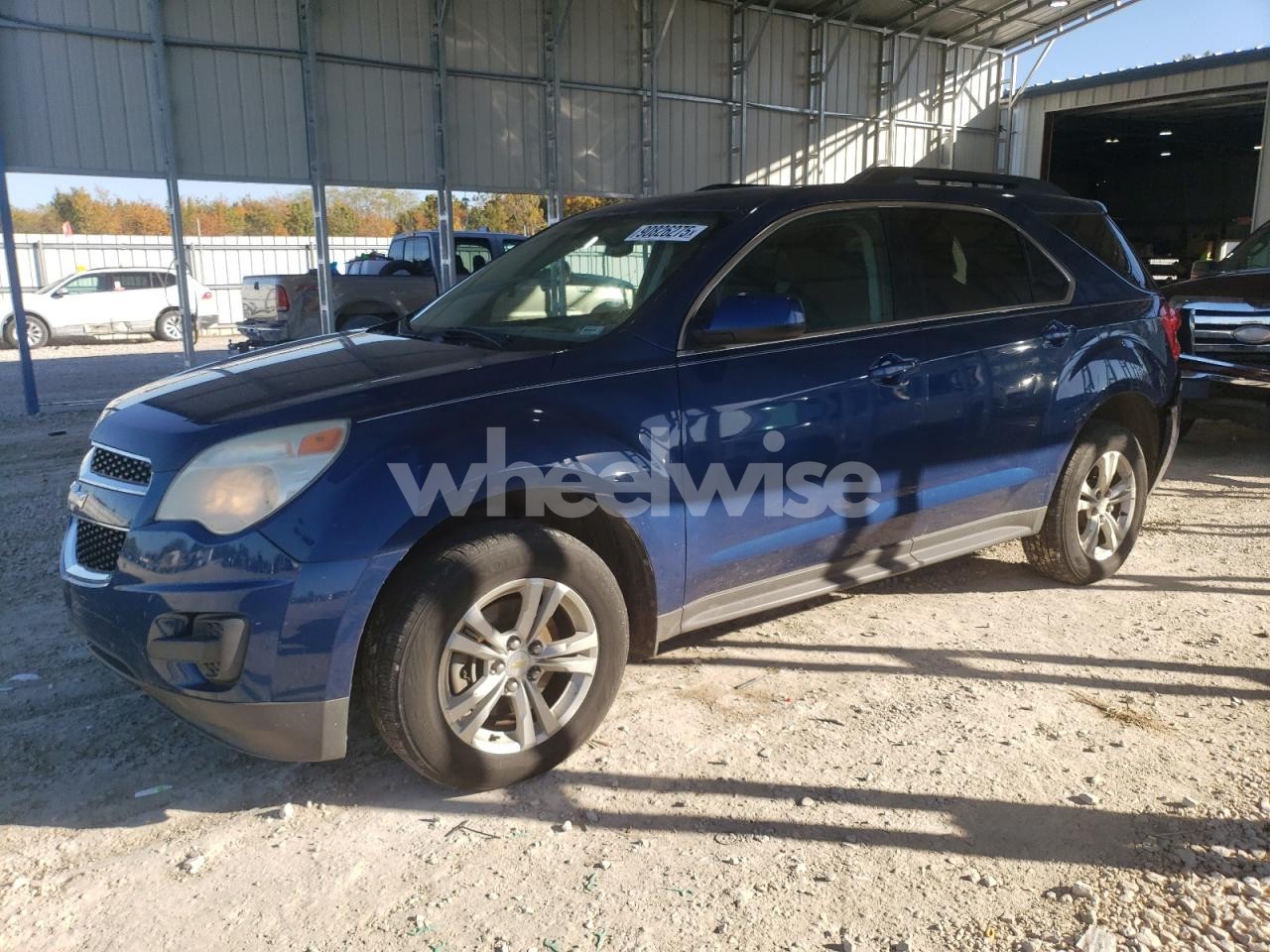
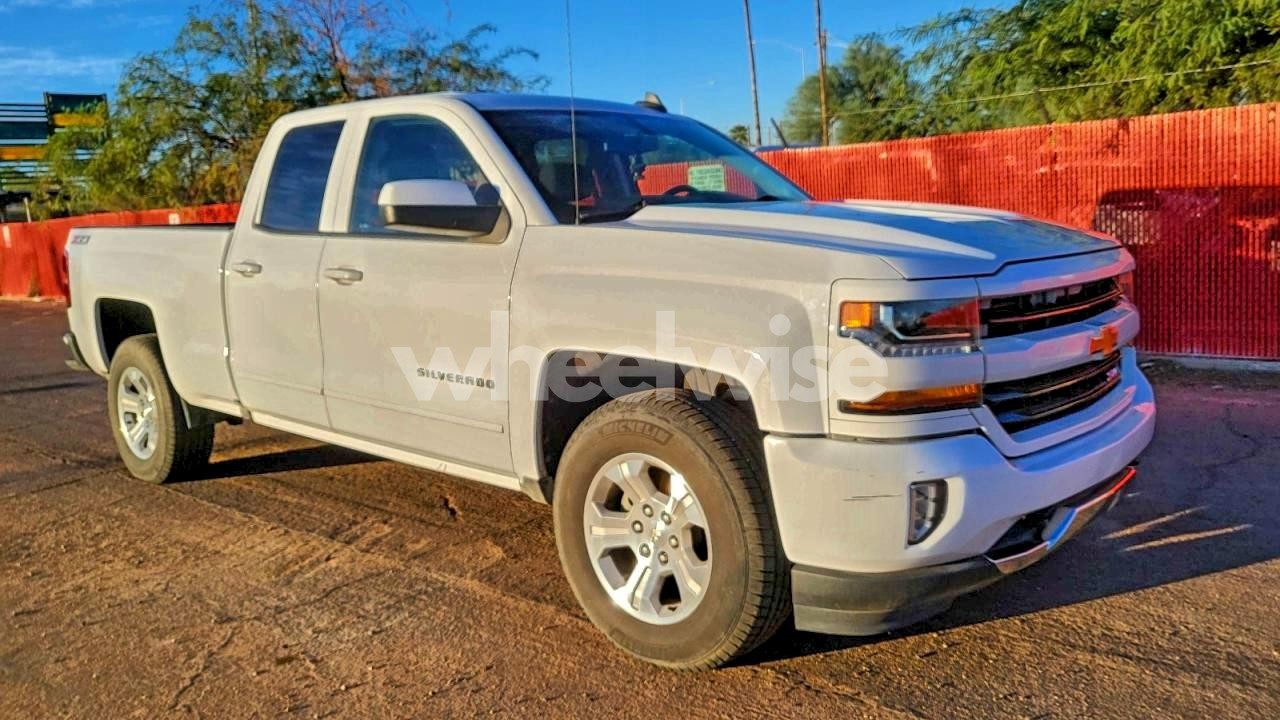
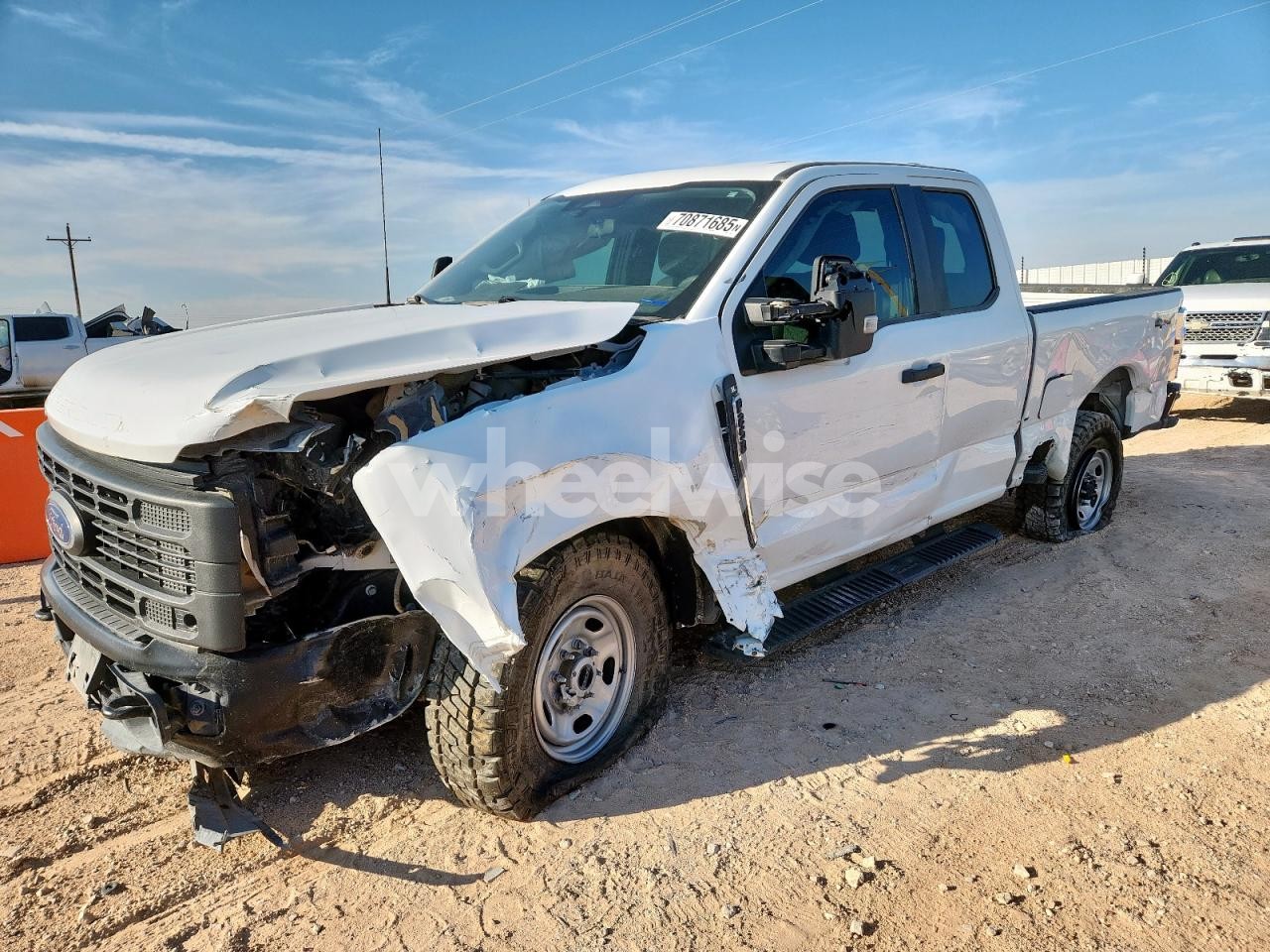
This section shows a limited sample of the newest records currently available in our index. Open a vehicle to view the VIN page. If a VIN appears multiple times, you may see repeated entries across different sale attempts.
Want to browse instead of using a VIN? Start from Makes and drill down to a model and year.
Common questions about browsing auction records.
If you have a specific VIN and want help understanding what’s shown on the page, use the contact page and include the VIN and the question.
Start with the VIN. If you don’t have one, browse makes and models to discover relevant years and listings.